
Test Via Deep Links
Once you get this set up, you’ll be able to scan a QR code from the Helium dashboard and have that paywall show on your device!- iOS
- React Native
- Flutter
Step 1: Add URL Scheme
Open your project in Xcode and add a URL scheme (official Apple documentation here):- Select your app target
- Go to Info tab
- Expand URL Types section
- Click + to add a new URL type
-
Set URL Schemes to:
helium-test -
Set Identifier to your bundle ID (e.g.,
com.company.myapp)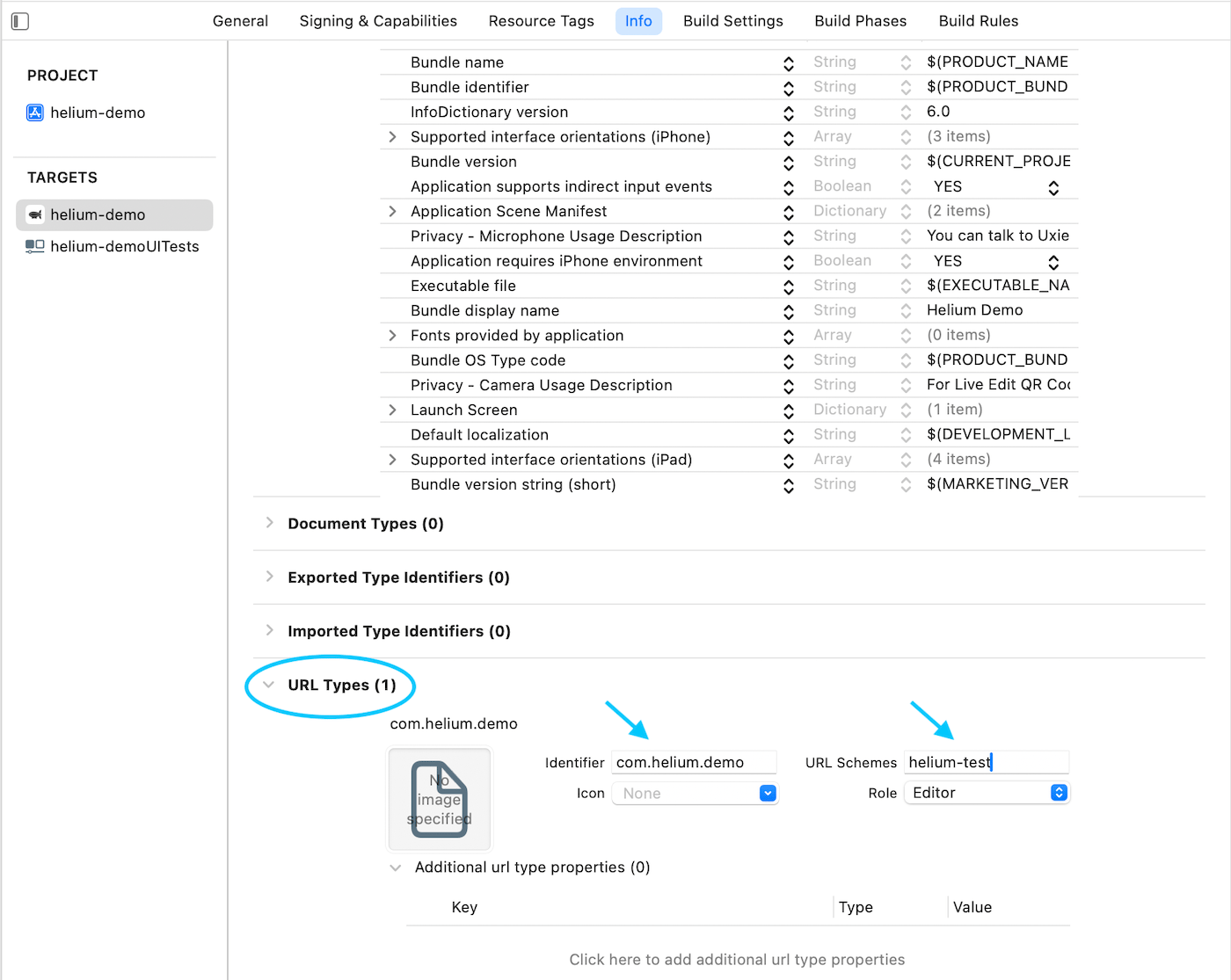
Step 2: Handle Deep Links
Add the following to handle incoming test links:Step 3: Test
- Run your app.
- Visit the desired paywall in the dashboard.
- Click the QR code button, this should open a dialog with a QR code.
- Scan it from your device camera.
- The paywall should display from your app.
To see the latest changes to the paywall, you may need to restart your app and scan again. (We are working on improving this.)
Only paywalls that are configured in an active workflow can be displayed via test link. Also, workflows with experiments may display any of the paywalls in the experiment. (We are working on improving this too.)
Explicit URL Testing
Instead of scanning, you can also craft the test link manually:- Open Safari and navigate to:
helium-test://helium-test?trigger=YOUR_TRIGGER_NAME. - Tap “Open” when prompted to open in your app.
- The paywall for the specified trigger will be opened.