
Overview
StoreKit Testing allows you to test in-app purchases and paywall presentations locally without connecting to App Store servers or making real purchases.To test your actual products across different regions, we suggest creating a sandbox test user:
- Create one at https://appstoreconnect.apple.com/access/users/sandbox
- Change the Country or Region field for the sandbox user
- On your test device, go to Settings -> Developer and sign in to the sandbox account
- Simulator can work… but sometimes has issues so physical device is recommended
- Run app from Xcode and the selected storefront country should be reflected
- More details on this page
Prerequisites
- Xcode 14 or later (for synced StoreKit configuration files)
- iOS 15.0+ target
Setting Up StoreKit Testing
1. Create a StoreKit Configuration File
- In Xcode, go to File → New → File from Template…
- Search for and select StoreKit Configuration File as the file template, then click Next
- Optional — check the “Sync this file with an app in App Store Connect” box to automatically configure the file with products you have already set up in App Store Connect
- Complete the file creation flow, saving the file in the top-level folder of your project. You don’t need to add it to a target.
2. Configure your StoreKit Configuration File
Note — If you’ve chosen to sync your configuration file with the App Store Connect, your file will already be populated with your products. To re-sync with App Store Connect, click on the file and then Sync at the bottom-left. If you want to manually edit it, use Editor > Convert to Local StoreKit Configuration. Use the + at the bottom-left to add a product.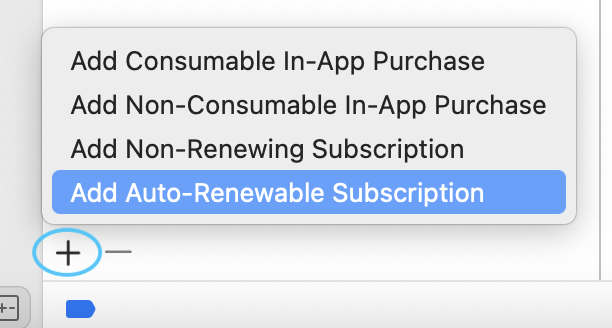
Run Your App With StoreKit Testing
You can either edit an existing scheme or create a new one (recommended):- In Xcode, go to Product → Scheme → Manage Schemes…
-
Select your primary scheme and find the option to Duplicate:
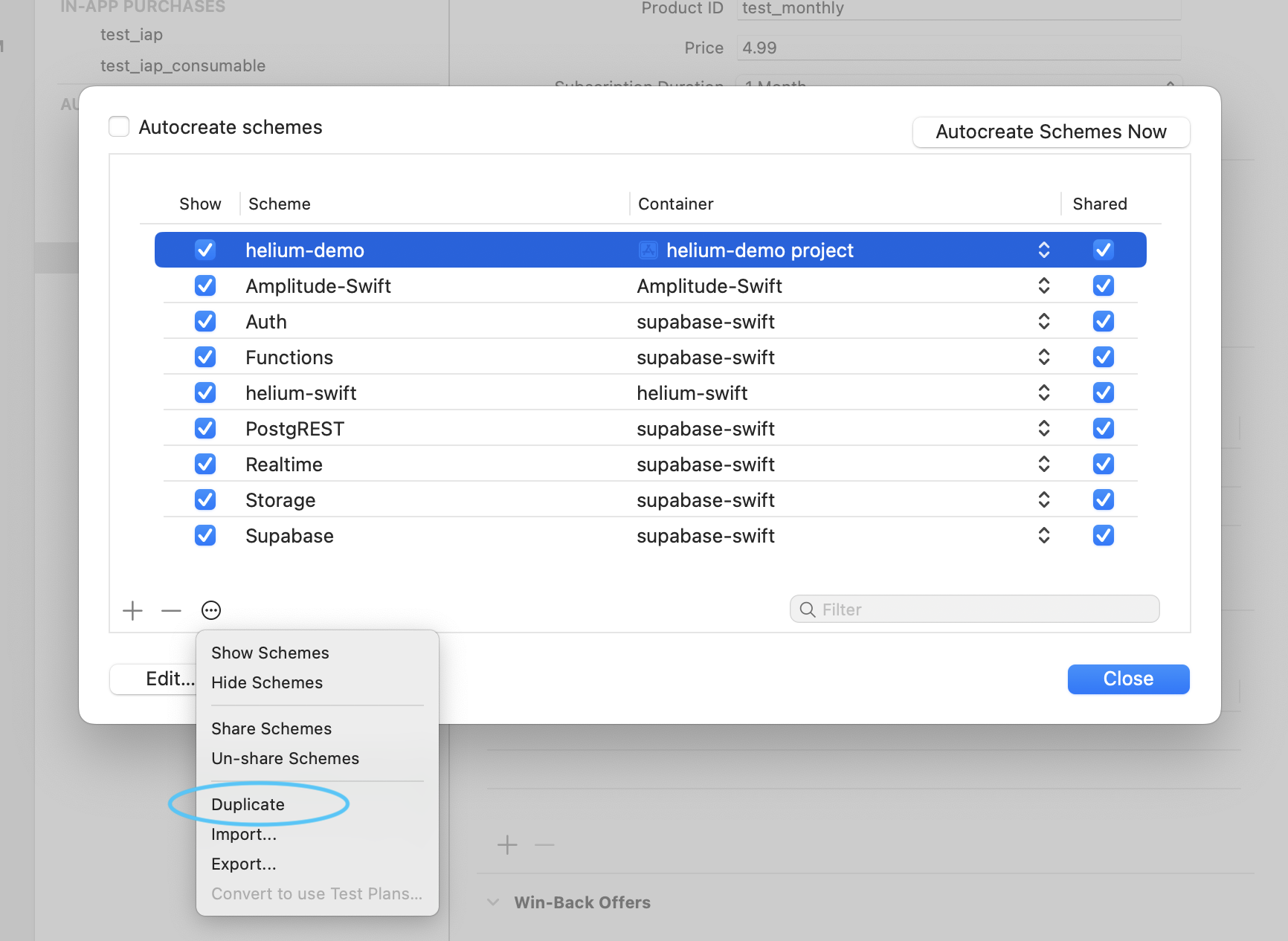
- Edit the new scheme’s name so you know it’s for StoreKit testing.
- Select the Run action.
- Click the Options tab.
- For the StoreKit Configuration option, select a configuration file and click Close.
- Run your project (make sure your active scheme is the one with the StoreKit Configuration option set!)
Regional Testing
Go to your StoreKit config file and under Configuration Settings, change Default Storefront:
Make sure you explicitly save (cmd+s) the StoreKit Configuration File before running the app — changes made here won’t get picked up otherwise!
Additional Resources
Test Purchases
For more complex purchase flows with StoreKit Testing, refer to Apple’s documentation on the transaction manager.Other Ways to Test Across Regions
- Use Xcode and your sandbox account. You can change the region of your sandbox account. Make sure you have disabled StoreKit Testing for this.
- On a TestFlight build, you can use your sandbox account as well, but only do this on a dedicated testing device!