> ## Documentation Index
> Fetch the complete documentation index at: https://docs.tryhelium.com/llms.txt
> Use this file to discover all available pages before exploring further.
# SDK Quickstart (iOS)
> Integrate Helium into your iOS app
To get a better understanding of how paywalls are served, visit [here](/guides/how-does-helium-work).
Migrating from v3? View [the migration guide](/migrations/ios-3-to-4).
# Present a Paywall
### Install the Helium SDK
Helium requires a minimum deployment target of iOS 15 and Xcode 14+. (Using the latest Xcode is recommended.)
We recommend using Swift Package Manager (SPM) but also offer a Cocoapod.
1. In Xcode, navigate to your project's **Package Dependencies:**
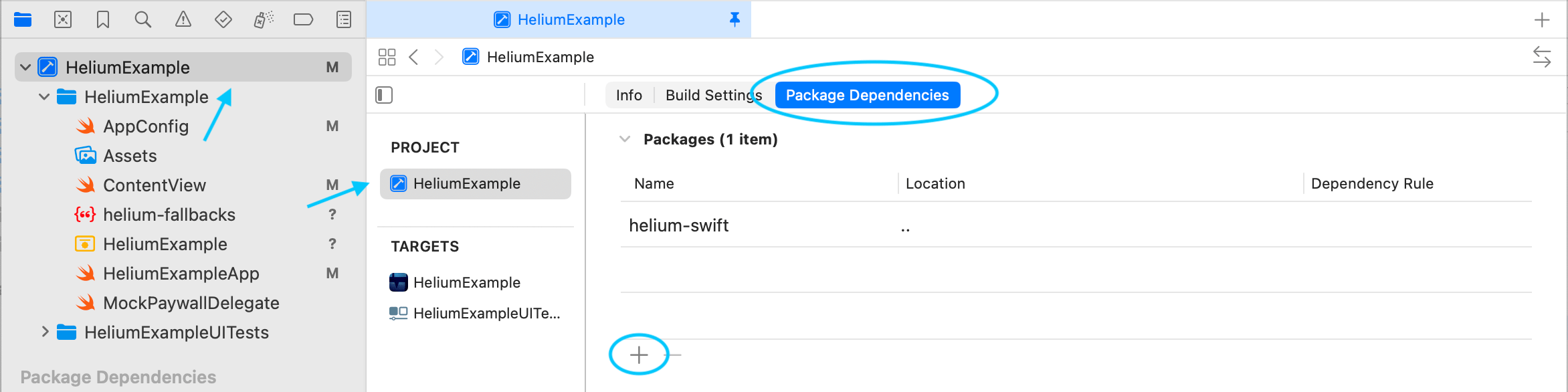 2. Click the **+** button and search for the Helium package URL:
```text theme={null}
https://github.com/cloudcaptainai/helium-swift.git
```
For **Dependency Rule** we recommend the default **Up to Next Major Version** to make sure you get non-breaking bug fixes. View the [list of releases](https://github.com/cloudcaptainai/helium-swift/releases) here.
3. Click **Add Package**.
4. In the dialog that appears, make sure to add the **Helium** product to your app's main target:
2. Click the **+** button and search for the Helium package URL:
```text theme={null}
https://github.com/cloudcaptainai/helium-swift.git
```
For **Dependency Rule** we recommend the default **Up to Next Major Version** to make sure you get non-breaking bug fixes. View the [list of releases](https://github.com/cloudcaptainai/helium-swift/releases) here.
3. Click **Add Package**.
4. In the dialog that appears, make sure to add the **Helium** product to your app's main target:
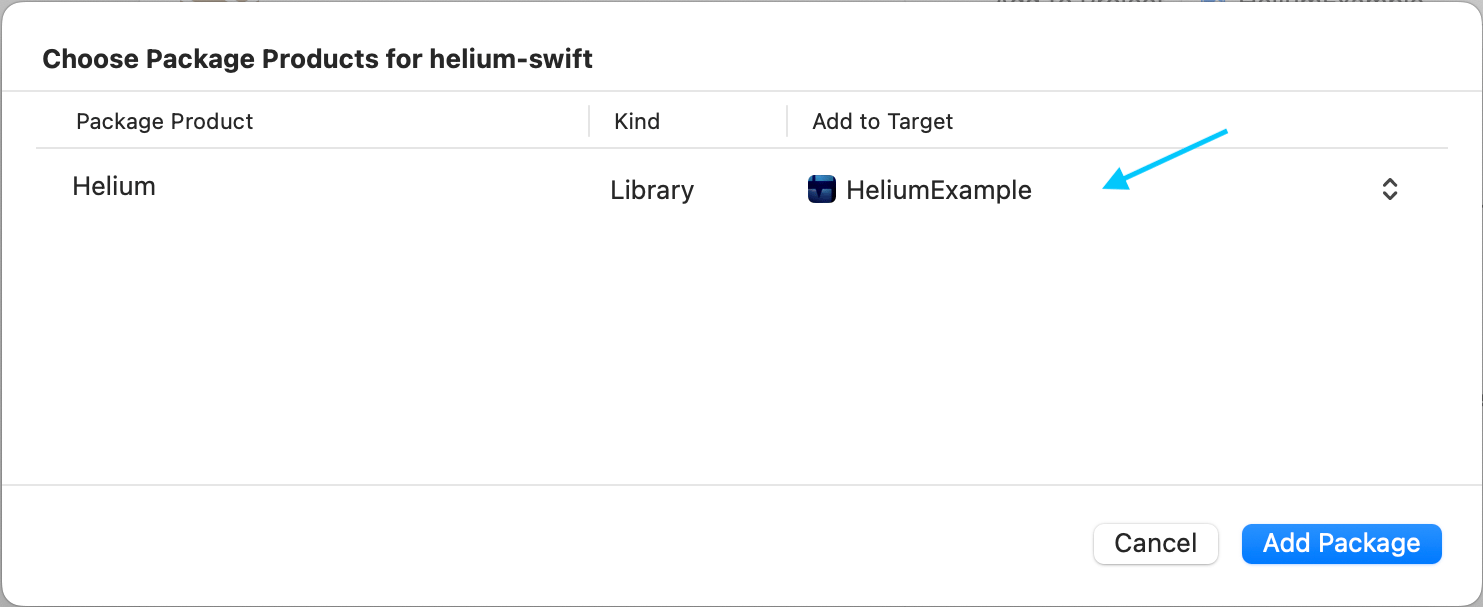 5. Select **Add Package** in the dialog and Helium should now be ready for import.
Add this to your Podfile:
```ruby theme={null}
pod 'Helium', '~> 4.0'
```
Then run:
```bash theme={null}
pod install
```
### Initialize Helium
Initialize the Helium SDK as early as possible in your app's lifecycle.
Find your API key [here](https://app.tryhelium.com/profile). If you do not have a Helium account set up yet, you can still integrate but will not be able to show a real paywall.
```swift theme={null}
Helium.shared.initialize(
apiKey: "helium-api-key"
)
```
Choose the appropriate location based on your app's architecture:
```swift theme={null}
@main
struct MyApp: App {
init() {
//*** Add this:
configureHelium()
}
var body: some Scene {
WindowGroup {
ContentView()
}
}
//*** And this:
private func configureHelium() {
Helium.shared.initialize(apiKey: "helium-api-key")
}
}
```
```swift theme={null}
class SceneDelegate: UIResponder, UIWindowSceneDelegate {
var window: UIWindow?
func scene(_ scene: UIScene, willConnectTo session: UISceneSession, options connectionOptions: UIScene.ConnectionOptions) {
//*** Add this:
configureHelium()
}
//*** And this:
private func configureHelium() {
Helium.shared.initialize(apiKey: "helium-api-key")
}
}
```
```swift theme={null}
@UIApplicationMain
class AppDelegate: UIResponder, UIApplicationDelegate {
var window: UIWindow?
func application(_ application: UIApplication, didFinishLaunchingWithOptions launchOptions: [UIApplication.LaunchOptionsKey: Any]?) -> Bool {
//*** Add this:
configureHelium()
return true
}
//*** And this:
private func configureHelium() {
Helium.shared.initialize(apiKey: "helium-api-key")
}
}
```
And import Helium in the same file:
```swift theme={null}
import Helium
```
### Show Your First Paywall 🎉
Set up a trigger and workflow in the [dashboard](https://app.tryhelium.com/workflows) to show your desired paywall. Create unique triggers for each location a paywall can show in your app! This provides more flexibility with paywall variation and experiments, allowing you to take full advantage of Helium.
Call `presentPaywall` wherever you want to show a full-screen paywall:
```swift theme={null}
Helium.shared.presentPaywall(
trigger: "premium"
) { paywallNotShownReason in
// Handle any scenario where the paywall does not show
}
```
The trigger name configured in the Helium dashboard
*(Optional)* Configuration for this paywall presentation
```swift theme={null}
struct PaywallPresentationConfig {
// View controller to present from. Defaults to current top view controller
var presentFromViewController: UIViewController? = nil
// Custom traits to send to the paywall
var customPaywallTraits: HeliumUserTraits? = nil
// Don't show paywall if user is entitled to a product in paywall.
// In most cases the default of false is desired -- see "Checking
// Subscription Status & Entitlements" below before enabling this.
var dontShowIfAlreadyEntitled: Bool = false
// How long to allow loading state before switching to fallback logic.
// Use zero or negative value to disable loading state.
var loadingBudget: TimeInterval = DEFAULT_LOADING_BUDGET
}
```
*(Optional)* Event handlers for paywall lifecycle events
*(Optional)* A handler for when user is entitled to a product in the paywall, via purchase or existing entitlement.
Handle any scenario where the paywall does not show. If user is already entitled and `config.dontShowIfAlreadyEntitled` is true, `onPaywallNotShown(.alreadyEntitled)` will be called only if `onEntitled` is not provided.
You should now be able to see Helium paywalls in your app! Well done! 🎉
Looking for alternative presentation methods? Check out the guide on [Ways to Show a Paywall](/guides/ways-to-show-paywall).
# Recommended Setup
Here are some common additional steps that you may want to consider.
### Identifying Users
Identifying users is optional but can help with targeting and when forwarding events to external analytics platforms. If you are not sure, you probably do not need to identify your users.
Identify users as early as you can to maximize consistency in metrics and targeting. Ideally right before you call Helium.shared.initialize!
Set a custom user ID
```swift theme={null}
Helium.identify.userId = "custom-user-id"
```
Set custom user traits for targeting and analytics visibility
```swift theme={null}
Helium.identify.setUserTraits(HeliumUserTraits(["hasOnboarded": true]))
// or Helium.identify.addUserTraits() if you don't want to clear existing traits
```
If you use an `appAccountToken` for your existing purchases, then we recommend you also share this value with Helium so Helium can apply the `appAccountToken` to paywall purchases.
```swift theme={null}
if let appAccountTokenUUID = UUID(uuidString: "app-account-token-uuid") {
Helium.identify.appAccountToken = appAccountTokenUUID
}
```
### Helium Events
Helium dispatches various events during paywall presentation and purchase flow. You can optionally handle these events in your mobile app. You can also configure Helium to forward them to your [existing analytics provider](/guides/third-party-analytics).
#### PaywallEventHandlers
When displaying a paywall you can pass in event handlers to listen for select events:
```swift theme={null}
Helium.shared.presentPaywall(
trigger: "post_onboarding",
eventHandlers: PaywallEventHandlers()
.onOpen { event in
print("open via trigger \(event.triggerName)")
}
.onClose { event in
print("close for trigger \(event.triggerName)")
}
.onDismissed { event in
print("dismiss for trigger \(event.triggerName)")
}
.onPurchaseSucceeded { event in
print("purchase succeeded for trigger \(event.triggerName)")
}
.onCustomPaywallAction { event in
print("Custom action: \(event.actionName) with params: \(event.params)")
}
.onAnyEvent { event in
// A handler for all paywall-related events.
// Note that if you have other handlers (i.e. onOpen) set up,
// both that handler AND this one will fire during paywall open.
}
) { paywallNotShownReason in
// handle paywall not shown
}
```
#### Global Helium Event Listener
You can also add one or more global event listeners. For example:
```swift theme={null}
/// Implement this where you want to handle events
public protocol HeliumEventListener : AnyObject {
func onHeliumEvent(event: HeliumEvent)
}
/// Add a listener for all Helium events.
public func addHeliumEventListener(_ listener: HeliumEventListener)
/// Remove a specific Helium event listener.
public func removeHeliumEventListener(_ listener: HeliumEventListener)
```
Listeners are held **weakly** to prevent memory leaks. If you don't maintain a strong reference to your listener, it will be deallocated immediately and no events will fire.
```swift theme={null}
// ❌ Wrong - listener is deallocated immediately, no events will fire
Helium.shared.addHeliumEventListener(MyListener())
// ✅ Works - singleton keeps a strong reference
class MyHeliumEventListener: HeliumEventListener {
static let shared = MyHeliumEventListener()
func onHeliumEvent(event: any HeliumEvent) {
print("Helium event: \(event.toDictionary())")
}
}
// And make sure to register it:
Helium.shared.addHeliumEventListener(MyHeliumEventListener.shared)
```
### Fallback Paywalls
It is **highly recommended** that you set up "fallbacks" to handle the rare case when a paywall fails to display. Please follow [this guide](/guides/fallback-bundle) to do so.
Do this *after* you have a paywall created that you want to use in production.
### Checking Subscription Status & Entitlements
Helium checks entitlements directly through StoreKit and provides helper methods to make this easier. Consider checking entitlements to gate premium features.
If you have a backend server that manages user entitlements, you may have no use for these helpers.
Accessed from `Helium.entitlements`:
`hasAny()` Checks if the user has purchased any subscription or non-consumable product.
`hasAnyActiveSubscription()` Checks if the user has any active subscription.
`hasEntitlementForPaywall(trigger: String, considerAssociatedSubscriptions: Bool = false)` Checks if the user has entitlements for any product in a specific paywall. Returns `nil` if paywall configuration hasn't been downloaded yet.
`hasActiveEntitlementFor(productId: String)` Checks if the user has entitlement to a specific product.
`hasActiveSubscriptionFor(productId: String)` Checks if the user has an active subscription for a specific product.
`hasActiveSubscriptionFor(subscriptionGroupID: String)` Checks if the user has an active subscription in a specific subscription group.
`purchasedProductIds()` Retrieves a list of all product IDs the user currently has access to.
`activeSubscriptions()` Returns detailed information about all active auto-renewing subscriptions.
`subscriptionStatusFor(productId: String)` Gets detailed subscription status for a specific product, including state information like subscribed, expired, or in grace period.
`subscriptionStatusFor(subscriptionGroupID: String)` Gets detailed subscription status for a specific subscription group.
If you want to check entitlement status before presenting a paywall, here are a couple of ways to do so.
For paywalls that are user-initiated (e.g. "Upgrade to Premium") and onboarding paywalls, checking entitled status is not recommended. Apps usually want to consistently show a paywall for these locations, and users can still "Restore Purchases" as needed.
```swift Use dontShowIfAlreadyEntitled with presentPaywall theme={null}
Helium.shared.presentPaywall(
trigger: "my_paywall_trigger",
config: PaywallPresentationConfig(
dontShowIfAlreadyEntitled: true
),
onEntitled: {
// handle user with existing entitlement
// or new entitlement after they completed/restored a purchase
}
) { paywallNotShownReason in
// handle paywall not shown
}
```
```swift Check before showing paywall theme={null}
let hasActiveSubscription = await Helium.entitlements.hasAnyActiveSubscription()
if hasActiveSubscription {
// access premium content
} else {
// show paywall
}
```
# Advanced
### RevenueCat
By default, Helium will handle purchases for you! This section is typically for users who already use RevenueCat in their app.
Helium integrates seamlessly with RevenueCat so you can continue to let RevenueCat handle your purchases and entitlements.
#### Install HeliumRevenueCat
1. In Xcode, navigate to your project's **Package Dependencies**.
2. Click the **+** button and search for the **HeliumRevenueCat** package URL:
```text theme={null}
https://github.com/cloudcaptainai/helium-swift-revenuecat.git
```
3. Add the **HeliumRevenueCat** product to your app's main target.
The **HeliumRevenueCat** package includes [purchases-ios-spm](https://github.com/RevenueCat/purchases-ios-spm) as a dependency, *not* [purchases-ios](https://github.com/RevenueCat/purchases-ios) and you may encounter build issues if you are using **purchases-ios** with SPM. (We recommend just switching to **purchases-ios-spm**).
Replace **Helium** with this in your Podfile:
```ruby theme={null}
pod 'Helium/RevenueCat', '~> 4.0'
```
Then run:
```bash theme={null}
pod install
```
#### Configure Helium to use RevenueCat for Purchases
Simply use Helium's pre-built `RevenueCatDelegate` to let RevenueCat handle paywall purchases.
```swift theme={null}
import HeliumRevenueCat // unless using Cocoapod then can just import Helium
Helium.config.purchaseDelegate = RevenueCatDelegate(
// Optional - pass in to have Helium handle RevenueCat initialization.
revenueCatApiKey: ""
)
```
If you do not supply `revenueCatApiKey`, make sure to initialize RevenueCat *before* creating the RevenueCatDelegate!
It is best to do this configuration *before* you call `Helium.shared.initialize`
#### RevenueCat appUserID
If you ever [change the appUserID](https://www.revenuecat.com/docs/customers/identifying-customers#logging-in-after-configuration) of a user, keep Helium in sync with:
```swift theme={null}
Helium.identify.revenueCatAppUserId = Purchases.shared.appUserID
```
### Custom Purchase Handling
By default, Helium will handle purchases for you! This section is for those who want to implement custom purchase logic.
Want to add some custom behavior but still use the built-in purchase logic? Just subclass `StoreKitDelegate` or `RevenueCatDelegate`! (Be sure to make a `super` call for any overridden methods.)
You can also create a custom delegate and implement your own purchase logic. You can look at our [StoreKitDelegate](https://github.com/cloudcaptainai/helium-swift/blob/main/Sources/Helium/HeliumCore/StoreKitDelegate.swift) and [RevenueCatDelegate](https://github.com/cloudcaptainai/helium-swift/blob/main/Sources/HeliumRevenueCat/HeliumRevenueCat.swift) in the SDK for examples (also linked below).
The `HeliumPaywallDelegate` is defined as follows:
```swift theme={null}
public protocol HeliumPaywallDelegate: AnyObject {
// Execute the purchase of a product given the product ID.
func makePurchase(productId: String) async -> HeliumPaywallTransactionStatus
// (Optional) - Restore any existing subscriptions.
// Return a boolean indicating whether the restore was successful.
func restorePurchases() async -> Bool
// (Optional) - Called for all Helium events (e.g. PaywallOpenEvent)
func onPaywallEvent(_ event: HeliumEvent)
}
```
### Additional Features
For the full public API and detailed parameter documentation, see the inline docstrings in the SDK source. Import Helium in your project and use your IDE's autocomplete or jump-to-definition to explore all available methods and types.
In most cases there is no need to check download status. Helium will display a loading indication if a paywall is presented before download has completed.
You can check the status of the paywall configuration download using the `Helium.shared.getDownloadStatus()` method. This method returns a value of type `HeliumFetchedConfigStatus`, which is defined as follows:
```swift theme={null}
public enum HeliumFetchedConfigStatus: String, Codable, Equatable {
case notDownloadedYet
case inProgress
case downloadSuccess
case downloadFailure
}
```
You can also simply check if paywalls have been successfully downloaded with `Helium.shared.paywallsLoaded()`.
Retrieve basic information about the paywall for a specific trigger with `Helium.shared.getPaywallInfo(trigger: String)` which returns:
```swift theme={null}
public struct PaywallInfo {
public let paywallTemplateName: String
// shouldShow only false if the paywall should not be shown due to targeting or workflow configuration (Helium handles this for you in presentPaywall)
public let shouldShow: Bool
}
```
This method can be used if you want to be certain that a paywall is ready for display before attempting to display.
You can programmatically hide paywalls using:
```swift theme={null}
// Hide the current paywall
Helium.shared.hidePaywall()
// Hide all currently displayed paywalls
Helium.shared.hideAllPaywalls()
```
Reset Helium entirely so you can call initialize again, for example after changing user traits that can affect the paywalls a user might see via targeting.
```swift theme={null}
Helium.resetHelium()
```
5. Select **Add Package** in the dialog and Helium should now be ready for import.
Add this to your Podfile:
```ruby theme={null}
pod 'Helium', '~> 4.0'
```
Then run:
```bash theme={null}
pod install
```
### Initialize Helium
Initialize the Helium SDK as early as possible in your app's lifecycle.
Find your API key [here](https://app.tryhelium.com/profile). If you do not have a Helium account set up yet, you can still integrate but will not be able to show a real paywall.
```swift theme={null}
Helium.shared.initialize(
apiKey: "helium-api-key"
)
```
Choose the appropriate location based on your app's architecture:
```swift theme={null}
@main
struct MyApp: App {
init() {
//*** Add this:
configureHelium()
}
var body: some Scene {
WindowGroup {
ContentView()
}
}
//*** And this:
private func configureHelium() {
Helium.shared.initialize(apiKey: "helium-api-key")
}
}
```
```swift theme={null}
class SceneDelegate: UIResponder, UIWindowSceneDelegate {
var window: UIWindow?
func scene(_ scene: UIScene, willConnectTo session: UISceneSession, options connectionOptions: UIScene.ConnectionOptions) {
//*** Add this:
configureHelium()
}
//*** And this:
private func configureHelium() {
Helium.shared.initialize(apiKey: "helium-api-key")
}
}
```
```swift theme={null}
@UIApplicationMain
class AppDelegate: UIResponder, UIApplicationDelegate {
var window: UIWindow?
func application(_ application: UIApplication, didFinishLaunchingWithOptions launchOptions: [UIApplication.LaunchOptionsKey: Any]?) -> Bool {
//*** Add this:
configureHelium()
return true
}
//*** And this:
private func configureHelium() {
Helium.shared.initialize(apiKey: "helium-api-key")
}
}
```
And import Helium in the same file:
```swift theme={null}
import Helium
```
### Show Your First Paywall 🎉
Set up a trigger and workflow in the [dashboard](https://app.tryhelium.com/workflows) to show your desired paywall. Create unique triggers for each location a paywall can show in your app! This provides more flexibility with paywall variation and experiments, allowing you to take full advantage of Helium.
Call `presentPaywall` wherever you want to show a full-screen paywall:
```swift theme={null}
Helium.shared.presentPaywall(
trigger: "premium"
) { paywallNotShownReason in
// Handle any scenario where the paywall does not show
}
```
The trigger name configured in the Helium dashboard
*(Optional)* Configuration for this paywall presentation
```swift theme={null}
struct PaywallPresentationConfig {
// View controller to present from. Defaults to current top view controller
var presentFromViewController: UIViewController? = nil
// Custom traits to send to the paywall
var customPaywallTraits: HeliumUserTraits? = nil
// Don't show paywall if user is entitled to a product in paywall.
// In most cases the default of false is desired -- see "Checking
// Subscription Status & Entitlements" below before enabling this.
var dontShowIfAlreadyEntitled: Bool = false
// How long to allow loading state before switching to fallback logic.
// Use zero or negative value to disable loading state.
var loadingBudget: TimeInterval = DEFAULT_LOADING_BUDGET
}
```
*(Optional)* Event handlers for paywall lifecycle events
*(Optional)* A handler for when user is entitled to a product in the paywall, via purchase or existing entitlement.
Handle any scenario where the paywall does not show. If user is already entitled and `config.dontShowIfAlreadyEntitled` is true, `onPaywallNotShown(.alreadyEntitled)` will be called only if `onEntitled` is not provided.
You should now be able to see Helium paywalls in your app! Well done! 🎉
Looking for alternative presentation methods? Check out the guide on [Ways to Show a Paywall](/guides/ways-to-show-paywall).
# Recommended Setup
Here are some common additional steps that you may want to consider.
### Identifying Users
Identifying users is optional but can help with targeting and when forwarding events to external analytics platforms. If you are not sure, you probably do not need to identify your users.
Identify users as early as you can to maximize consistency in metrics and targeting. Ideally right before you call Helium.shared.initialize!
Set a custom user ID
```swift theme={null}
Helium.identify.userId = "custom-user-id"
```
Set custom user traits for targeting and analytics visibility
```swift theme={null}
Helium.identify.setUserTraits(HeliumUserTraits(["hasOnboarded": true]))
// or Helium.identify.addUserTraits() if you don't want to clear existing traits
```
If you use an `appAccountToken` for your existing purchases, then we recommend you also share this value with Helium so Helium can apply the `appAccountToken` to paywall purchases.
```swift theme={null}
if let appAccountTokenUUID = UUID(uuidString: "app-account-token-uuid") {
Helium.identify.appAccountToken = appAccountTokenUUID
}
```
### Helium Events
Helium dispatches various events during paywall presentation and purchase flow. You can optionally handle these events in your mobile app. You can also configure Helium to forward them to your [existing analytics provider](/guides/third-party-analytics).
#### PaywallEventHandlers
When displaying a paywall you can pass in event handlers to listen for select events:
```swift theme={null}
Helium.shared.presentPaywall(
trigger: "post_onboarding",
eventHandlers: PaywallEventHandlers()
.onOpen { event in
print("open via trigger \(event.triggerName)")
}
.onClose { event in
print("close for trigger \(event.triggerName)")
}
.onDismissed { event in
print("dismiss for trigger \(event.triggerName)")
}
.onPurchaseSucceeded { event in
print("purchase succeeded for trigger \(event.triggerName)")
}
.onCustomPaywallAction { event in
print("Custom action: \(event.actionName) with params: \(event.params)")
}
.onAnyEvent { event in
// A handler for all paywall-related events.
// Note that if you have other handlers (i.e. onOpen) set up,
// both that handler AND this one will fire during paywall open.
}
) { paywallNotShownReason in
// handle paywall not shown
}
```
#### Global Helium Event Listener
You can also add one or more global event listeners. For example:
```swift theme={null}
/// Implement this where you want to handle events
public protocol HeliumEventListener : AnyObject {
func onHeliumEvent(event: HeliumEvent)
}
/// Add a listener for all Helium events.
public func addHeliumEventListener(_ listener: HeliumEventListener)
/// Remove a specific Helium event listener.
public func removeHeliumEventListener(_ listener: HeliumEventListener)
```
Listeners are held **weakly** to prevent memory leaks. If you don't maintain a strong reference to your listener, it will be deallocated immediately and no events will fire.
```swift theme={null}
// ❌ Wrong - listener is deallocated immediately, no events will fire
Helium.shared.addHeliumEventListener(MyListener())
// ✅ Works - singleton keeps a strong reference
class MyHeliumEventListener: HeliumEventListener {
static let shared = MyHeliumEventListener()
func onHeliumEvent(event: any HeliumEvent) {
print("Helium event: \(event.toDictionary())")
}
}
// And make sure to register it:
Helium.shared.addHeliumEventListener(MyHeliumEventListener.shared)
```
### Fallback Paywalls
It is **highly recommended** that you set up "fallbacks" to handle the rare case when a paywall fails to display. Please follow [this guide](/guides/fallback-bundle) to do so.
Do this *after* you have a paywall created that you want to use in production.
### Checking Subscription Status & Entitlements
Helium checks entitlements directly through StoreKit and provides helper methods to make this easier. Consider checking entitlements to gate premium features.
If you have a backend server that manages user entitlements, you may have no use for these helpers.
Accessed from `Helium.entitlements`:
`hasAny()` Checks if the user has purchased any subscription or non-consumable product.
`hasAnyActiveSubscription()` Checks if the user has any active subscription.
`hasEntitlementForPaywall(trigger: String, considerAssociatedSubscriptions: Bool = false)` Checks if the user has entitlements for any product in a specific paywall. Returns `nil` if paywall configuration hasn't been downloaded yet.
`hasActiveEntitlementFor(productId: String)` Checks if the user has entitlement to a specific product.
`hasActiveSubscriptionFor(productId: String)` Checks if the user has an active subscription for a specific product.
`hasActiveSubscriptionFor(subscriptionGroupID: String)` Checks if the user has an active subscription in a specific subscription group.
`purchasedProductIds()` Retrieves a list of all product IDs the user currently has access to.
`activeSubscriptions()` Returns detailed information about all active auto-renewing subscriptions.
`subscriptionStatusFor(productId: String)` Gets detailed subscription status for a specific product, including state information like subscribed, expired, or in grace period.
`subscriptionStatusFor(subscriptionGroupID: String)` Gets detailed subscription status for a specific subscription group.
If you want to check entitlement status before presenting a paywall, here are a couple of ways to do so.
For paywalls that are user-initiated (e.g. "Upgrade to Premium") and onboarding paywalls, checking entitled status is not recommended. Apps usually want to consistently show a paywall for these locations, and users can still "Restore Purchases" as needed.
```swift Use dontShowIfAlreadyEntitled with presentPaywall theme={null}
Helium.shared.presentPaywall(
trigger: "my_paywall_trigger",
config: PaywallPresentationConfig(
dontShowIfAlreadyEntitled: true
),
onEntitled: {
// handle user with existing entitlement
// or new entitlement after they completed/restored a purchase
}
) { paywallNotShownReason in
// handle paywall not shown
}
```
```swift Check before showing paywall theme={null}
let hasActiveSubscription = await Helium.entitlements.hasAnyActiveSubscription()
if hasActiveSubscription {
// access premium content
} else {
// show paywall
}
```
# Advanced
### RevenueCat
By default, Helium will handle purchases for you! This section is typically for users who already use RevenueCat in their app.
Helium integrates seamlessly with RevenueCat so you can continue to let RevenueCat handle your purchases and entitlements.
#### Install HeliumRevenueCat
1. In Xcode, navigate to your project's **Package Dependencies**.
2. Click the **+** button and search for the **HeliumRevenueCat** package URL:
```text theme={null}
https://github.com/cloudcaptainai/helium-swift-revenuecat.git
```
3. Add the **HeliumRevenueCat** product to your app's main target.
The **HeliumRevenueCat** package includes [purchases-ios-spm](https://github.com/RevenueCat/purchases-ios-spm) as a dependency, *not* [purchases-ios](https://github.com/RevenueCat/purchases-ios) and you may encounter build issues if you are using **purchases-ios** with SPM. (We recommend just switching to **purchases-ios-spm**).
Replace **Helium** with this in your Podfile:
```ruby theme={null}
pod 'Helium/RevenueCat', '~> 4.0'
```
Then run:
```bash theme={null}
pod install
```
#### Configure Helium to use RevenueCat for Purchases
Simply use Helium's pre-built `RevenueCatDelegate` to let RevenueCat handle paywall purchases.
```swift theme={null}
import HeliumRevenueCat // unless using Cocoapod then can just import Helium
Helium.config.purchaseDelegate = RevenueCatDelegate(
// Optional - pass in to have Helium handle RevenueCat initialization.
revenueCatApiKey: ""
)
```
If you do not supply `revenueCatApiKey`, make sure to initialize RevenueCat *before* creating the RevenueCatDelegate!
It is best to do this configuration *before* you call `Helium.shared.initialize`
#### RevenueCat appUserID
If you ever [change the appUserID](https://www.revenuecat.com/docs/customers/identifying-customers#logging-in-after-configuration) of a user, keep Helium in sync with:
```swift theme={null}
Helium.identify.revenueCatAppUserId = Purchases.shared.appUserID
```
### Custom Purchase Handling
By default, Helium will handle purchases for you! This section is for those who want to implement custom purchase logic.
Want to add some custom behavior but still use the built-in purchase logic? Just subclass `StoreKitDelegate` or `RevenueCatDelegate`! (Be sure to make a `super` call for any overridden methods.)
You can also create a custom delegate and implement your own purchase logic. You can look at our [StoreKitDelegate](https://github.com/cloudcaptainai/helium-swift/blob/main/Sources/Helium/HeliumCore/StoreKitDelegate.swift) and [RevenueCatDelegate](https://github.com/cloudcaptainai/helium-swift/blob/main/Sources/HeliumRevenueCat/HeliumRevenueCat.swift) in the SDK for examples (also linked below).
The `HeliumPaywallDelegate` is defined as follows:
```swift theme={null}
public protocol HeliumPaywallDelegate: AnyObject {
// Execute the purchase of a product given the product ID.
func makePurchase(productId: String) async -> HeliumPaywallTransactionStatus
// (Optional) - Restore any existing subscriptions.
// Return a boolean indicating whether the restore was successful.
func restorePurchases() async -> Bool
// (Optional) - Called for all Helium events (e.g. PaywallOpenEvent)
func onPaywallEvent(_ event: HeliumEvent)
}
```
### Additional Features
For the full public API and detailed parameter documentation, see the inline docstrings in the SDK source. Import Helium in your project and use your IDE's autocomplete or jump-to-definition to explore all available methods and types.
In most cases there is no need to check download status. Helium will display a loading indication if a paywall is presented before download has completed.
You can check the status of the paywall configuration download using the `Helium.shared.getDownloadStatus()` method. This method returns a value of type `HeliumFetchedConfigStatus`, which is defined as follows:
```swift theme={null}
public enum HeliumFetchedConfigStatus: String, Codable, Equatable {
case notDownloadedYet
case inProgress
case downloadSuccess
case downloadFailure
}
```
You can also simply check if paywalls have been successfully downloaded with `Helium.shared.paywallsLoaded()`.
Retrieve basic information about the paywall for a specific trigger with `Helium.shared.getPaywallInfo(trigger: String)` which returns:
```swift theme={null}
public struct PaywallInfo {
public let paywallTemplateName: String
// shouldShow only false if the paywall should not be shown due to targeting or workflow configuration (Helium handles this for you in presentPaywall)
public let shouldShow: Bool
}
```
This method can be used if you want to be certain that a paywall is ready for display before attempting to display.
You can programmatically hide paywalls using:
```swift theme={null}
// Hide the current paywall
Helium.shared.hidePaywall()
// Hide all currently displayed paywalls
Helium.shared.hideAllPaywalls()
```
Reset Helium entirely so you can call initialize again, for example after changing user traits that can affect the paywalls a user might see via targeting.
```swift theme={null}
Helium.resetHelium()
```