> ## Documentation Index
> Fetch the complete documentation index at: https://docs.tryhelium.com/llms.txt
> Use this file to discover all available pages before exploring further.
# Fallback Paywalls
> How to download fallback paywalls from the dashboard and include it in your app.
## What are "fallbacks"?
The Helium SDK does its best to fetch the latest paywalls to display in your app. But if for some reason a paywall is not available — perhaps if an app user temporarily did not have a data connection — Helium will attempt to show a "fallback".
You can download copies of your actual Helium paywalls and include that in your app to use in the rare case that a Helium paywall is not ready for display.
## Download Fallbacks
Go to the [Workflows](https://app.tryhelium.com/workflows) page in your dashboard and find the **Download Fallbacks** button:
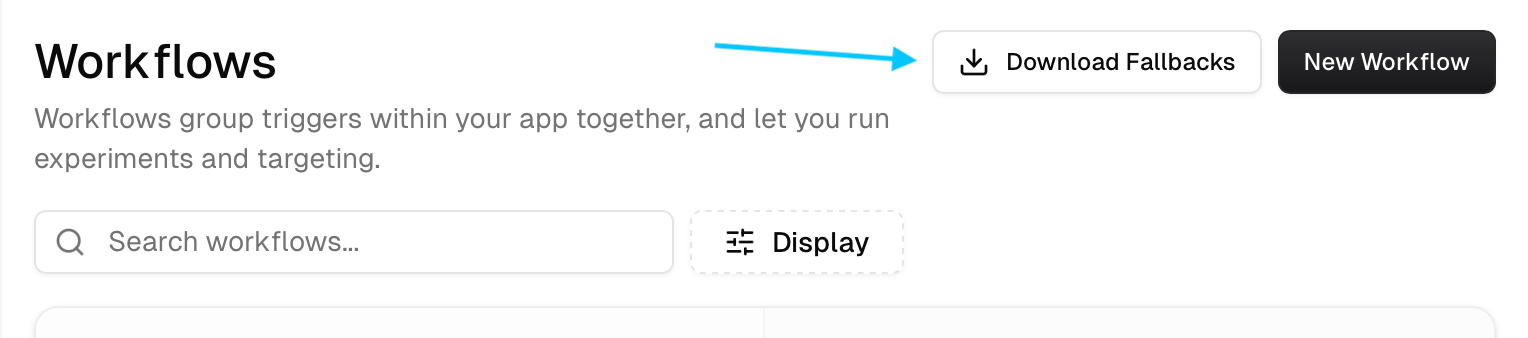 This will open a dialog and allow you to select which paywall/s to use as fallback. Most of the time you only need to set Default Fallbacks.
After selection, click **Download** and your browser should download a file named **helium-fallbacks.json**.
Whenever you update paywalls consider whether you want to repeat this process to update your fallbacks.
## Add fallbacks to your Helium SDK integration
1. Integrate the SDK with the [iOS Quickstart](/sdk/quickstart-ios) if you haven't done so already.
2. Drag your downloaded file into the Project navigator of your Xcode project.
3. You should see a dialog with **Action** and **Targets** fields. For **Action**, select your preference between the move and copy options. For **Targets** ensure that your app's main target is selected.
4. That's it! The SDK automatically detects any file with the name `helium-fallbacks.json`.
To use a custom file name, set it before calling `initialize()`:
```swift theme={null}
Helium.config.customFallbacksURL = Bundle.main.url(
forResource: "fallback-bundle-xxxx-xx-xx",
withExtension: "json"
)
```
1. Integrate the SDK with the [Android Quickstart](/sdk/quickstart-android) if you haven't done so already.
2. In your app's `src/main` directory, create an `assets` folder if one doesn't already exist.
3. Drag your downloaded bundle into the `assets` folder.
4. That's it! The SDK automatically detects `helium-fallbacks.json` in your assets.
To use a custom file name, set it before calling `initialize()`:
```kotlin theme={null}
Helium.config.customFallbacksFileName = "fallback-bundle-xxxx-xx-xx.json"
```
1. Integrate the SDK with the [React Native Quickstart](/sdk/quickstart-react-native) if you haven't done so already.
2. Drag your downloaded bundle into your React Native project where desired.
3. Pass in to `Helium.initialize`
```typescript theme={null}
const fallbackBundle = require('./assets/fallback-bundle-xxxx-xx-xx.json');
initialize(
apiKey: apiKey,
// ... other parameters ...
fallbackBundle: fallbackBundle,
)
```
Make sure to use the correct path and filename in your `require` call!
1. Integrate the SDK with the [Flutter Quickstart](/sdk/quickstart-flutter) if you haven't done so already.
2. Drag your downloaded bundle into your Flutter project where desired.
3. In your `pubspec.yaml` add the new asset:
```yaml theme={null}
assets:
- .env
- fallback-bundle-xxxx-xx-xx.json # add this line
```
4. Pass in to `Helium.initialize`
```dart theme={null}
heliumFlutter.initialize(
// ... other parameters ...
fallbackBundleAssetPath: "fallback-bundle-xxxx-xx-xx.json"
```
Make sure to use the correct filename in both `pubspec.yaml` and the call to `initialize`!
## Testing Fallbacks
Look at your debug log output when running a debug build of your app to see if fallbacks are successfully loaded.
To see a fallback paywall, you can run your app in airplane mode or use a non-existent trigger when presenting a paywall.
## How to Monitor and Minimize Fallback Rate
You can check your app's fallback rate by going to your [Metrics page](https://app.tryhelium.com/metrics) and clicking on the "Fallback Rate" tab under Monitoring. This rate shows the percentage of paywall opens that use a fallback paywall. If you notice your fallback rate is higher than expected, here are some tips on minimizing it:
* **Move your initialize() call earlier in your app's lifecycle.** We recommend doing so right when your app is launched.
* **Set a higher loading budget.** If your paywall is still downloading when presented, Helium will show a loading state. The default loading budget of 7 seconds is generally plenty of time to ensure your paywall will show before fallback is used. But if you have overridden the budget to be a lower value, consider increasing it.
* **Reduce the size of image assets in your paywall.** We recommend keeping each paywall to be under about 3-5 MB in total size. If you're adding high resolution imagery to your paywall (which is fine!) we recommend converting images to .webp format - e.g. with an online converter like [https://cloudconvert.com/webp-converter](https://cloudconvert.com/webp-converter).
If you still see a rate higher than expected, please get in touch!
## Fallback Causes
### Paywall is still downloading
This is the most common reason.
Helium fetches your latest paywalls when the Helium SDK is initialized. If a user is on a very slow connection or has no connection at all, a fallback will be shown.
### Paywalls failed to download
Similarly, if user has no connection or a very limited connection, the paywall retrieval may fail entirely. Or in the unlikely event Helium servers are temporarily down.
### No products associated with paywall for platform
Can occur when a paywall is downloaded but does not have products properly linked for the platform (iOS/Android) it is served to.
### Other Causes
The above are the most likely causes, but a fallback can also occur if paywall html is malformed or from any other unexpected Helium bug.
This will open a dialog and allow you to select which paywall/s to use as fallback. Most of the time you only need to set Default Fallbacks.
After selection, click **Download** and your browser should download a file named **helium-fallbacks.json**.
Whenever you update paywalls consider whether you want to repeat this process to update your fallbacks.
## Add fallbacks to your Helium SDK integration
1. Integrate the SDK with the [iOS Quickstart](/sdk/quickstart-ios) if you haven't done so already.
2. Drag your downloaded file into the Project navigator of your Xcode project.
3. You should see a dialog with **Action** and **Targets** fields. For **Action**, select your preference between the move and copy options. For **Targets** ensure that your app's main target is selected.
4. That's it! The SDK automatically detects any file with the name `helium-fallbacks.json`.
To use a custom file name, set it before calling `initialize()`:
```swift theme={null}
Helium.config.customFallbacksURL = Bundle.main.url(
forResource: "fallback-bundle-xxxx-xx-xx",
withExtension: "json"
)
```
1. Integrate the SDK with the [Android Quickstart](/sdk/quickstart-android) if you haven't done so already.
2. In your app's `src/main` directory, create an `assets` folder if one doesn't already exist.
3. Drag your downloaded bundle into the `assets` folder.
4. That's it! The SDK automatically detects `helium-fallbacks.json` in your assets.
To use a custom file name, set it before calling `initialize()`:
```kotlin theme={null}
Helium.config.customFallbacksFileName = "fallback-bundle-xxxx-xx-xx.json"
```
1. Integrate the SDK with the [React Native Quickstart](/sdk/quickstart-react-native) if you haven't done so already.
2. Drag your downloaded bundle into your React Native project where desired.
3. Pass in to `Helium.initialize`
```typescript theme={null}
const fallbackBundle = require('./assets/fallback-bundle-xxxx-xx-xx.json');
initialize(
apiKey: apiKey,
// ... other parameters ...
fallbackBundle: fallbackBundle,
)
```
Make sure to use the correct path and filename in your `require` call!
1. Integrate the SDK with the [Flutter Quickstart](/sdk/quickstart-flutter) if you haven't done so already.
2. Drag your downloaded bundle into your Flutter project where desired.
3. In your `pubspec.yaml` add the new asset:
```yaml theme={null}
assets:
- .env
- fallback-bundle-xxxx-xx-xx.json # add this line
```
4. Pass in to `Helium.initialize`
```dart theme={null}
heliumFlutter.initialize(
// ... other parameters ...
fallbackBundleAssetPath: "fallback-bundle-xxxx-xx-xx.json"
```
Make sure to use the correct filename in both `pubspec.yaml` and the call to `initialize`!
## Testing Fallbacks
Look at your debug log output when running a debug build of your app to see if fallbacks are successfully loaded.
To see a fallback paywall, you can run your app in airplane mode or use a non-existent trigger when presenting a paywall.
## How to Monitor and Minimize Fallback Rate
You can check your app's fallback rate by going to your [Metrics page](https://app.tryhelium.com/metrics) and clicking on the "Fallback Rate" tab under Monitoring. This rate shows the percentage of paywall opens that use a fallback paywall. If you notice your fallback rate is higher than expected, here are some tips on minimizing it:
* **Move your initialize() call earlier in your app's lifecycle.** We recommend doing so right when your app is launched.
* **Set a higher loading budget.** If your paywall is still downloading when presented, Helium will show a loading state. The default loading budget of 7 seconds is generally plenty of time to ensure your paywall will show before fallback is used. But if you have overridden the budget to be a lower value, consider increasing it.
* **Reduce the size of image assets in your paywall.** We recommend keeping each paywall to be under about 3-5 MB in total size. If you're adding high resolution imagery to your paywall (which is fine!) we recommend converting images to .webp format - e.g. with an online converter like [https://cloudconvert.com/webp-converter](https://cloudconvert.com/webp-converter).
If you still see a rate higher than expected, please get in touch!
## Fallback Causes
### Paywall is still downloading
This is the most common reason.
Helium fetches your latest paywalls when the Helium SDK is initialized. If a user is on a very slow connection or has no connection at all, a fallback will be shown.
### Paywalls failed to download
Similarly, if user has no connection or a very limited connection, the paywall retrieval may fail entirely. Or in the unlikely event Helium servers are temporarily down.
### No products associated with paywall for platform
Can occur when a paywall is downloaded but does not have products properly linked for the platform (iOS/Android) it is served to.
### Other Causes
The above are the most likely causes, but a fallback can also occur if paywall html is malformed or from any other unexpected Helium bug.